 GoalGlance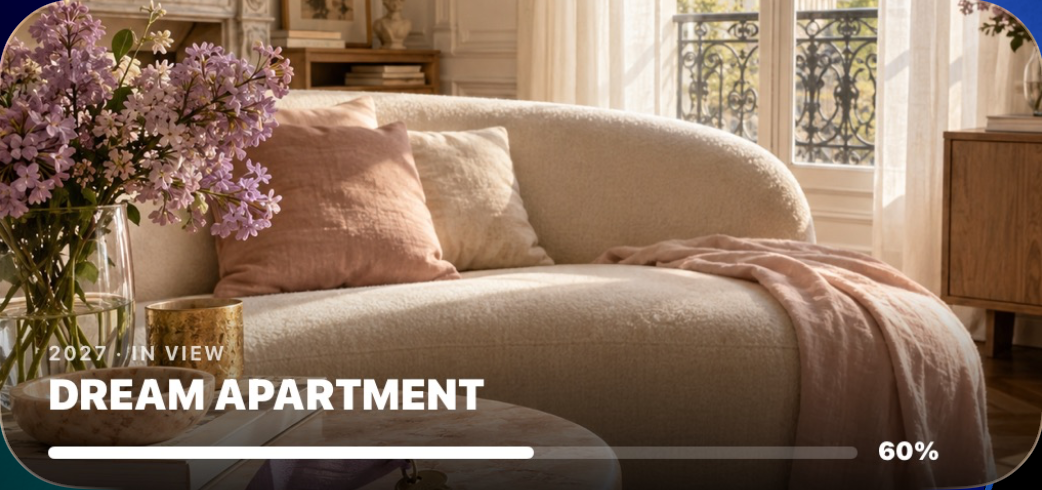
Start with the image you actually want to see
Choose one project before choosing the layout: your own apartment, a place you want to visit or a career change. A useful first board can be a single photo and a short intention. You can build a more detailed collage later.
Look at the image at roughly the size of a widget. Can you still recognise the subject? A bright room with one clear focal point is easier to read than a screenshot containing tiny captions and several unrelated pictures. Keep a copy of your original so that you can try different crops.
If you are still choosing a theme, use these vision board ideas to narrow it down.
Add it to the Home Screen
First create and save a vision in GoalGlance. On the iPhone Home Screen, hold an empty area, open Edit then Add Widget, find GoalGlance and choose an available layout. Older iOS versions may show a plus button. Place the widget and finish editing.
Apple documents the system steps in its widget setup guide. Labels can vary with your iOS version. GoalGlance requires iOS 17 or later; the free option includes one vision and Progress, while the other widget types require Premium.
Make the photo work with your wallpaper
A board and a wallpaper have different jobs. The wallpaper fills the background; the widget gives one intention its own space. If both contain a busy collage, try a quieter background behind the widget.
- Keep important faces, objects and words away from the edges.
- Check the crop after placement, not only in your photo library.
- Use a short caption that remains readable at the chosen size.
- Choose a page you naturally visit instead of hiding it behind unused apps.
Home Screen or Lock Screen?
Use the Home Screen when the photo is the point. Lock Screen layouts have less room and may suit a compact intention or number instead. The formats offered depend on the widget, so inspect the available preview before deciding.
A detailed image on your Home Screen can complement an affirmation widget or a countdown to a date. You do not need all of them: choose the information you want to see.
If it looks wrong or does not appear
If your subject is cut off, recrop a copy with more space around it. If text becomes tiny, shorten it rather than shrinking every element. If the app is missing from the gallery, open it once after installation and check that a vision has been saved.
For a widget showing the wrong content, check its configuration where available and reopen the app. If the problem continues, use GoalGlance support and include your iOS version and widget type. Do not include private goal details you do not want to share.
Give the board a job beyond looking good
Write down what this image represents in one sentence. For an apartment, that could be having a quiet space of your own. Pick a next step outside the widget, such as comparing neighbourhoods. When you return to the image, you then have something specific to think about.
Change a picture when your intention changes or the crop is no longer useful. There is no mandatory schedule and no need to rebuild your whole screen every week.